Explore the images in a Heal&Zest product gallery
Move through a product's available images, open a larger view and check the pack you are considering.
Look beyond the first image
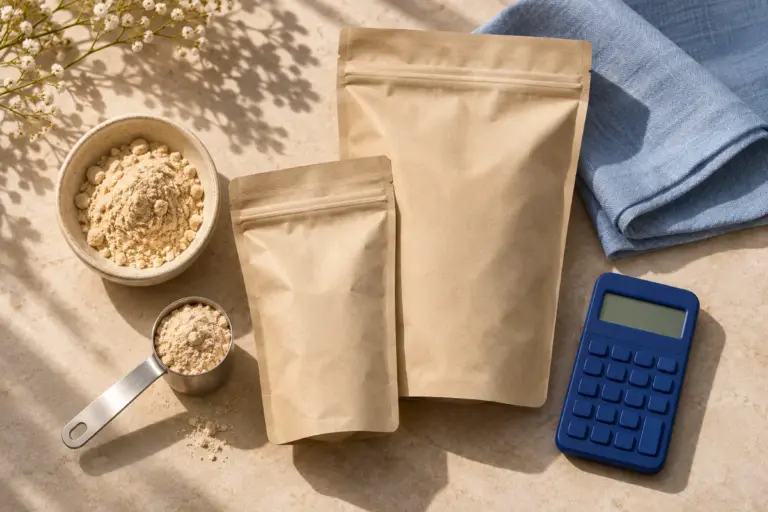
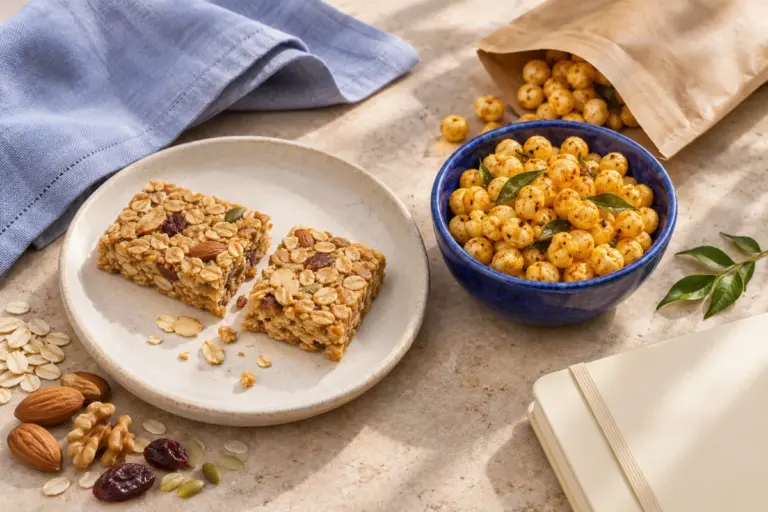
A product page can contain more than its main image. Heal&Zest keeps the available original gallery images alongside the refreshed main artwork, giving you additional views to inspect while choosing a product.
Where the main image is an illustration, the page identifies it as such. Use the other available images and the written listing to check the product you are considering. Image counts vary between products, and a gallery does not guarantee that every side of a package is shown.
Move through the gallery
- Open a product page and find the images near its title and buying options.
- Choose a thumbnail or use Previous image and Next image to move between views.
- Use the image counter to see your position in the gallery.
- Open the larger image view when you need a closer look, then close it to return to the product page.
Check the exact product before adding it
For keyboard navigation, focus a gallery thumbnail and use the left or right arrow key to move between images. Home and End move to the first and last available thumbnails. The gallery controls help you inspect the selection without having to reopen the product.
Compare the product name and pack size in the listing with the images you view. Packaging can change, and an illustration is not a substitute for readable current label information. If ingredients, directions or another necessary detail are missing or unclear, ask support for confirmation before buying.
Switching a gallery image does not change the selected product or its pack size. Use the product's pack links where available to open another size.
Explore product pages and galleries
Continue exploring
Find another pack size on a Heal&Zest product page
Explore all Heal&Zest feature guides